Visualizing Animated Data with PowerPoint#
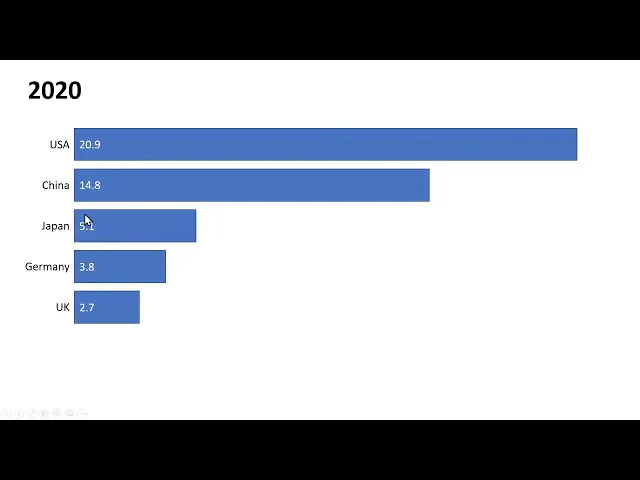
You’ll learn how to create an animated bar chart race in PowerPoint, covering:
- Using the Morph Transition: How to leverage PowerPoint’s Morph feature to animate the resizing and reordering of bars between slides, which is the core technique for the race effect.
- Manual Bar Creation: The process of using individual shapes (rectangles) instead of a standard chart and how to size them accurately to represent your data values.
- Adding and Syncing Audio: How to record a voiceover for each slide, add background music that plays across the entire presentation, and sync them with the animations.
- Automating Playback: Setting up automatic slide transitions to create a self-playing, video-like presentation that advances after the narration for each slide is complete.
- Exporting as a Video: The steps to save your final animation as an MPEG-4 video file directly from PowerPoint and the suggestion of alternative methods like OBS for higher quality.
- Prototyping Data Stories: Understanding the manual effort required for this method and how it allows for careful control when prototyping and crafting a specific visual narrative.
How to make bar chart race in PowerPoint#
Source: How to make a bar chart race in PowerPoint
Flourish made bar chart races easy to create. That sparked a data visualization meme with hundreds of bar chart races like these going viral.
With PowerPoint’s morph transition, it’s now possible to make a bar chart race in PowerPoint, too. Here’s an example.
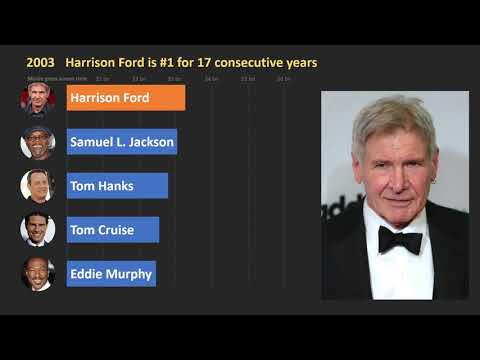
Step-by-step guide to make Bar Chart Race in PowerPoint#
Here’s a quick walk-through of the techniques we used to create this.
Step 1: Create a 2-slide bar chart race#
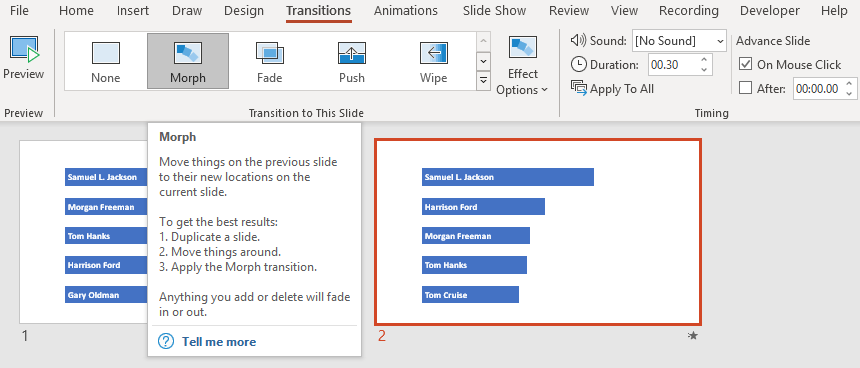
To create the animation, create two slides. In the first, add one rectangle per bar in the bar chart. Copy the slide to the second one, and move or re-size the bars. The result could look like this.
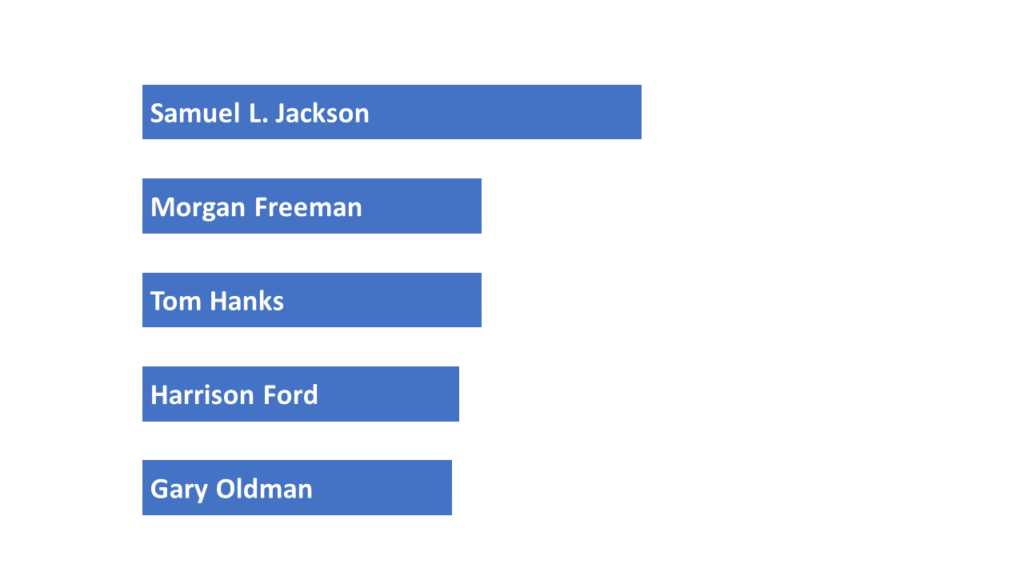
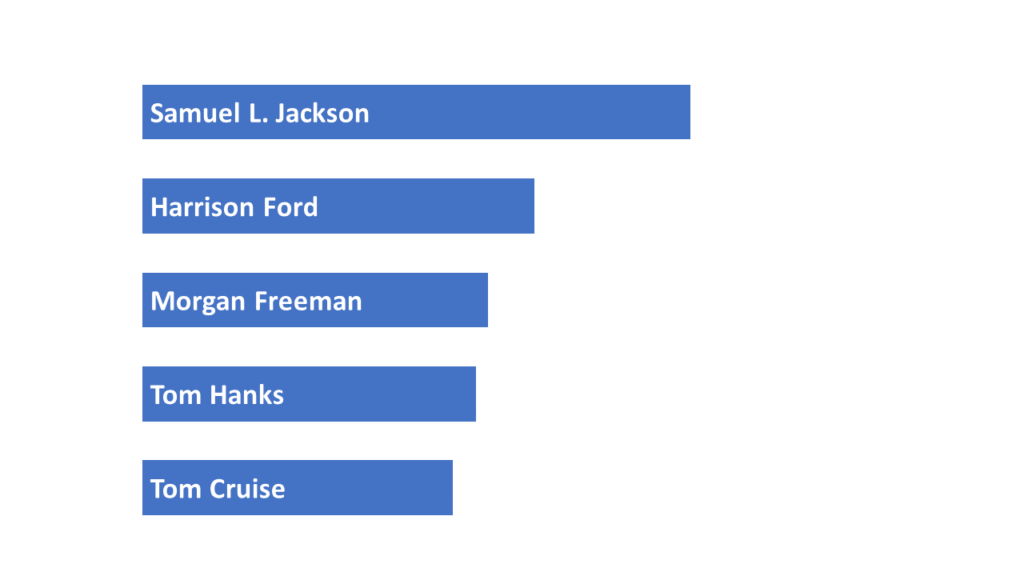
Under Transition, choose “Morph”. Pick a duration.
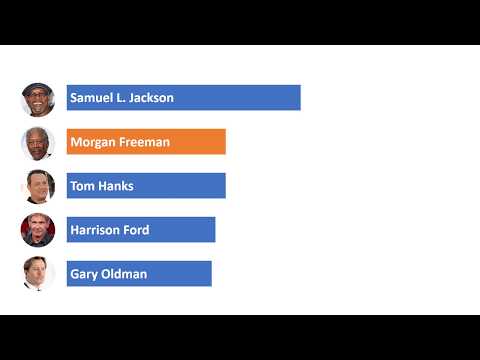
When you view it slideshow mode, this is what it looks like.
PowerPoint moves objects based on the text in the bar chart. You can add images. These will be moved too. Colors will be smoothly morphed.
Download this Bar Chart Race PPTX to try it out
Step 2: Size the bars accurately#
The reason we can’t just use a bar chart is that PowerPoint can’t morph bar charts. So the (painful) alternative is to manually create the bars.
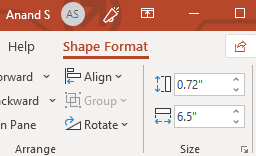
A quick way is to scale the numbers by a convenient factor. For example, if Samuel Jackson’s box office gross is $6.5 billion, you can select the Shape Format and set the width to 6.5″. (You can select all the bars and scale them later.)
Create the Star Wars Intro Crawl#
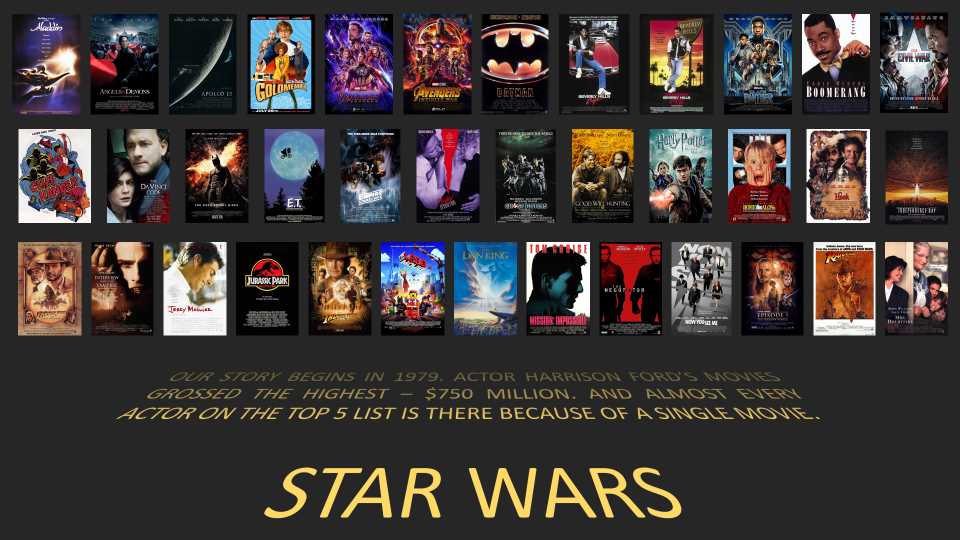
The ShapeChef blog has a step-by-step guide on How to Create a Star Wars Intro Crawl. This uses WordArt styles and 3D rotation to create something that mimics the Star Wars intro crawl.
Step 3: Record voiceover#
PowerPoint’s Insert > Media > Audio > Record Audio… feature lets you record your voice and insert it into the slide directly. You can use Playback controls to trim the audio and fade in or out.
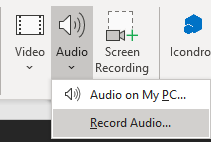
I wrote down the script for each year and inserted the audio on every slide.
Step 4: Auto-play the voiceover#
Select the Start: “Automatically” option. This plays the audio as soon as the slide starts.
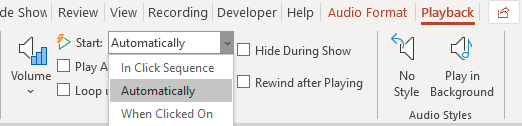
To advance the slides automatically, select the Transition > Timing > Advance Slide > After option, and set it to zero. This will move to the next slide after all the animations (including audio) on the page are complete.

Step 5: Add background music#
You can find background music at YouTube’s Audio Library, SoundCloud, Jamendo, etc. Download the audio, insert it in your first slide. Check Playback > Audio Options > Play across Slides. That will play the music in the background. (Reduce the volume, so that it’s not intrusive.)
Step 6: Export as MPEG-4#
PowerPoint can save as MPEG-4 video. For some reason, though, the output was jittery. So for my final version, I used Open Broadcaster Software (OBS) instead and recorded the screen.
99% perspiration#
These techniques were quick to find. But the bulk of the time went into:
- Crafting an interesting story to tell — which included the titles, and finding the movies to support the title
- Settings the widths on every single one of the 40 slides
- Adding the photos against every bar and movie posters on every slide
- Adding animations against every movie poster
- Recording the voice-over on every slide
All-in-all, a fairly manual effort. For deployment, the automated scrolly-telling approach “Box Office Mojo” created by Pratap works much better.
But we chose the manual approach consciously. While prototyping, it allowed us to change course mid-way easily.