AI Coding in IDEs#
AI-powered coding assistants have changed how we write code within traditional IDEs and editors. These tools provide intelligent code completion, chat interfaces, and automated refactoring capabilities that dramatically increase developer productivity.
In this module, you’ll learn:
- Copy-paste workflows: Fast iteration cycles using web-based AI assistants for quick fixes and code generation
- GitHub Copilot: The industry-standard AI pair programmer for VS Code and other editors
- Cursor: An AI-native editor with advanced context understanding and agent capabilities
- Windsurf: The first agentic IDE with deep codebase awareness and collaborative AI features
Copy-paste workflows#
The simplest and often most effective AI coding workflow involves copying code and errors to web-based AI assistants, then pasting the improved solutions back into your editor. This approach works with any editor and provides access to the latest AI models.
Basic workflow#
Copy your code and context: Select the problematic code, relevant error messages, and any necessary surrounding context. Include file names, function purposes, and specific requirements in your copy.
Paste into AI chat: Use ChatGPT, Claude.ai, Gemini, Qwen, DeepSeek, or similar web interfaces. Be specific about what you want: “Fix this bug”, “Optimize this function”, “Add error handling”, etc.
Review and paste back: Carefully review the AI’s suggestions before pasting back into your editor. AI responses may not account for your full codebase context.
Essential safety practices#
Always run linters and tests: After pasting AI-generated code, immediately run your linters, type checkers, and test suites. This catches syntax errors, type mismatches, and broken functionality.
Avoid context drift: AI assistants don’t remember your full codebase. Include relevant imports, type definitions, and function signatures when asking for help with complex code.
Version control everything: Commit your working code before applying AI suggestions. This gives you an easy rollback path if the AI changes break something unexpected.
Best use cases#
- Quick bug fixes: Copy error messages and the surrounding code for fast debugging
- Code refactoring: Get suggestions for cleaner, more efficient implementations
- Documentation: Generate comments and docstrings for existing functions
- Learning new patterns: Understand unfamiliar code by asking for explanations
GitHub Copilot#
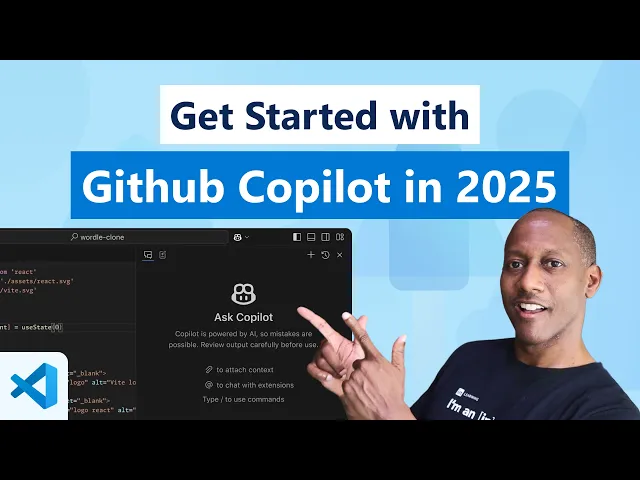
GitHub Copilot is the most widely adopted AI coding assistant, seamlessly integrated into VS Code, JetBrains IDEs, and other popular editors. It provides real-time code suggestions and has evolved into a comprehensive AI development platform.
Copilot uses OpenAI’s models trained specifically on code repositories, making it exceptionally good at understanding programming patterns and suggesting contextually relevant completions.
Key features#
Ghost text completions: As you type, Copilot suggests code completions in gray text. Press Tab to accept the full suggestion, or Ctrl+→ (Windows/Linux) / Cmd+→ (Mac) to accept word by word.
Inline chat (Ctrl+I): Ask Copilot to generate or modify code directly in your editor. This is perfect for writing new functions or refactoring existing code with natural language instructions.
Chat panel: Open a dedicated chat interface to discuss your code, ask questions, and get explanations. Access with Ctrl+Shift+I or the Copilot icon in the activity bar.
Code actions: Right-click on selected code to access Copilot-powered actions like “Explain this”, “Generate tests”, or “Fix with Copilot”.
Tips and tricks#
Use descriptive variable names: Copilot uses variable and function names as context clues. user_data will get better suggestions than data.
Write clear comments: Start functions with comments describing what they should do. Copilot often generates complete implementations from good comments.
Accept suggestions incrementally: Use Ctrl+→ to accept partial suggestions instead of the full completion. This gives you more control over the generated code.
Toggle Copilot strategically: Click the Copilot icon in the status bar to disable it for specific files or languages where you want to practice coding without assistance.
Leverage the command palette: Use Ctrl+Shift+P and search “Copilot” to access all available commands, including explain code, generate tests, and suggest improvements.
- Copilot Best Practices (What Not To Do)
- GitHub Copilot Chat Cookbook
- GitHub Copilot keyboard shortcuts
Cursor#
Cursor is an AI-native code editor built specifically for AI-powered development. It combines the familiar VS Code interface with advanced AI capabilities, offering superior context understanding and multi-file editing.
Cursor differentiates itself through proprietary models trained specifically for code editing and its ability to understand entire codebases, not just individual files.
Key features#
Tab autocomplete: Powered by proprietary models that predict multi-line edits and can suggest changes across multiple files simultaneously. More advanced than traditional autocomplete.
Composer (Agent mode Ctrl+I): An AI agent that can make complex, multi-file changes end-to-end. It finds relevant files, applies changes, and can even run terminal commands with your approval.
Chat with codebase (@ mentions): Reference specific files, functions, or code symbols using @ syntax. This gives the AI precise context about your codebase structure.
Image support: Drag images into the chat to include visual context. Useful for implementing UI designs or debugging visual issues.
Web search (@Web): Get up-to-date information from the internet. Helpful for finding current API documentation or solving recent technology issues.
Advanced capabilities#
Smart rewrites: Type carelessly and Cursor fixes your mistakes automatically, understanding intent even from rough input.
Multi-file context: Cursor can understand relationships between files and suggest changes that maintain consistency across your entire project.
Terminal integration (Ctrl+K in terminal): Write terminal commands in plain English and Cursor converts them to the appropriate shell commands.
Error detection and fixes: Automatically detects lint errors and applies fixes, reducing manual debugging time.
Tips and tricks#
Use precise @ references: Instead of explaining context, use @filename or @function_name to give Cursor exact context about what you’re working with.
Leverage Tab navigation: Press Tab to jump through multi-line suggestions, allowing you to accept parts of complex changes incrementally.
Customize instructions: Set up project-specific instructions to teach Cursor about your coding style, frameworks, and conventions.
Trust but verify: Cursor’s agent mode is powerful but always review changes before accepting them, especially in production code.
Windsurf#
Windsurf is the first agentic IDE, built to keep developers in flow state. It combines deep codebase understanding with real-time awareness of your actions, creating a collaborative AI experience that feels more like pair programming than tool usage.
Windsurf is built by Codeium and represents the evolution from traditional autocomplete to full AI collaboration in software development.
Key features#
Cascade (AI Agent): The core AI system that has full contextual awareness of your project. It can understand production codebases and make relevant suggestions across multiple files and components.
Supercomplete: Goes beyond traditional autocomplete by predicting your next actions, not just the next code snippet. It understands workflow patterns and anticipates your development needs.
Live previews: See your web applications live in the IDE, click on elements, and let Cascade reshape them instantly according to your instructions.
Tab to jump: Predicts the next location of your cursor and allows seamless navigation through files and code sections.
Command palette (Cmd+I): Generate or refactor code inline using natural language instructions. Works in both editor and terminal contexts.
Advanced workflow features#
Linter integration: If Cascade generates code that doesn’t pass your linter, it automatically detects and fixes the errors without manual intervention.
Model Context Protocol (MCP): Connect to custom tools and services to enhance your AI workflows beyond standard code editing.
Highlighted code actions: Select code and directly reference it in Cascade or refactor it using natural language commands.
Real-time collaboration: Multiple developers can work with the AI simultaneously, maintaining context across team members.
Enterprise capabilities#
Production-ready security: Used by 59% of Fortune 500 companies with enterprise-grade security guarantees and compliance features.
Self-hosted options: Can be deployed in your own environment for complete control over code and data.
Custom model integration: Support for connecting your own models and maintaining proprietary training data.
Tips and tricks#
Stay in flow state: Let Windsurf handle routine tasks while you focus on architecture and creative problem-solving. The AI is designed to minimize context switching.
Use preview-driven development: Build web UIs by describing what you want and iterating on the live preview rather than writing HTML/CSS from scratch.
Leverage full-project context: Unlike other tools, Windsurf understands your entire codebase, so don’t limit your requests to single files.
Collaborate with the AI: Think of Cascade as a senior developer pair programming with you, not just an autocomplete tool.
- Windsurf – The Best Agentic AI Code Editor (2025)
- How Windsurf writes 90% of your code with an Agentic IDE
- Windsurf Documentation
Choosing the right tool#
Copy-paste workflows are perfect for beginners, quick fixes, and working with any editor. Use when you need access to the latest AI models or want to learn before committing to a specific AI-powered editor.
GitHub Copilot is ideal if you’re already comfortable with VS Code or JetBrains IDEs and want the most mature, well-documented AI coding assistant. It’s the safe choice for enterprise environments.
Cursor excels when you need advanced context understanding and multi-file operations. Choose it if you’re building complex applications and want an AI that understands your entire codebase structure.
Windsurf is best for teams working on production applications who want the most advanced AI collaboration. It’s particularly strong for web development and maintaining flow state during complex development tasks.
All these tools are rapidly evolving, so experiment with multiple approaches to find what works best for your development style and project requirements.