LLM CLI: llm#
llm is a command-line utility for interacting with large language models—simplifying prompts, managing models and plugins, logging every conversation, and extracting structured data for pipelines.
Basic Usage#
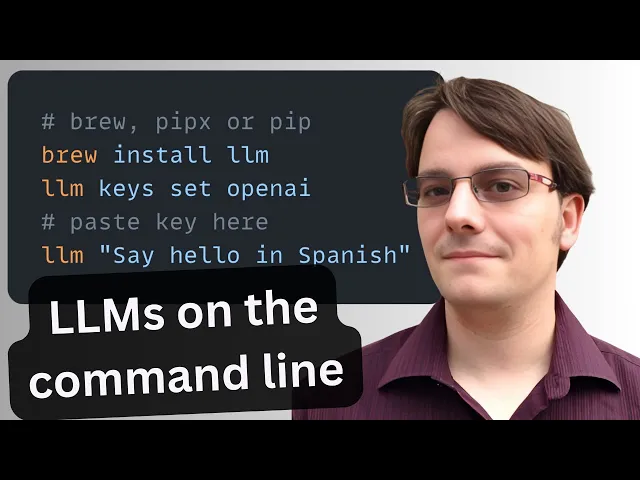
Install llm. Then set up your OPENAI_API_KEY environment variable. See Getting started.
TDS Students: See Large Language Models for instructions on how to get and use OPENAI_API_KEY.
# Run a simple prompt
llm 'five great names for a pet pelican'

# Continue a conversation
llm -c 'now do walruses'

# Start a memory-aware chat session
llm chat

# Specify a model
llm -m gpt-4.1-nano 'Summarize tomorrow’s meeting agenda'

# Extract JSON output
llm 'List the top 5 Python viz libraries with descriptions' \
  --schema-multi 'name,description'
Or use llm without installation using uvx:
# Run llm via uvx without any prior installation
uvx llm 'Translate "Hello, world" into Japanese'

# Specify a model
uvx llm -m gpt-4.1-nano 'Draft a 200-word blog post on data ethics'

# Use structured JSON output
uvx llm 'List the top 5 programming languages in 2025 with their release years' \
  --schema-multi 'rank,language,release_year'
Key Features#
- Interactive prompts:
llm '…'— Fast shell access to any LLM. - Conversational flow:
-c '…'— Continue context across prompts. - Model switching:
-m MODEL— Use OpenAI, Anthropic, local models, and more. - Structured output:
llm json— Produce JSON for automation. - Logging & history:
llm logs path— Persist every prompt/response in SQLite. - Web UI:
datasette "$(llm logs path)"— Browse your entire history with Datasette. - Persistent chat:
llm chat— Keep the model in memory across multiple interactions. - Plugin ecosystem:
llm install PLUGIN— Add support for new models, data sources, or workflows. (Language models on the command-line - Simon Willison’s Weblog)
Practical Uses#
- Automated coding. Generate code scaffolding, review helpers, or utilities on demand. For example, after running
llm install llm-cmd, runllm cmd 'Undo the last git commit'. Inspired by Simon’s post on using LLMs for rapid tool building. - Transcript processing. Summarize YouTube or podcast transcripts using Gemini. See Putting Gemini 2.5 Pro through its paces.
- Commit messages. Turn diffs into descriptive commit messages, e.g.
git diff | llm 'Write a concise git commit message explaining these changes'. - Data extraction. Convert free-text into structured JSON for automation. Structured data extraction from unstructured content using LLM schemas.