2025 09 22 Week 1 - Session 3 TDS Sep 2025#
Duration: 1h 58m
Here’s an FAQ-style transcription of the live tutorial:
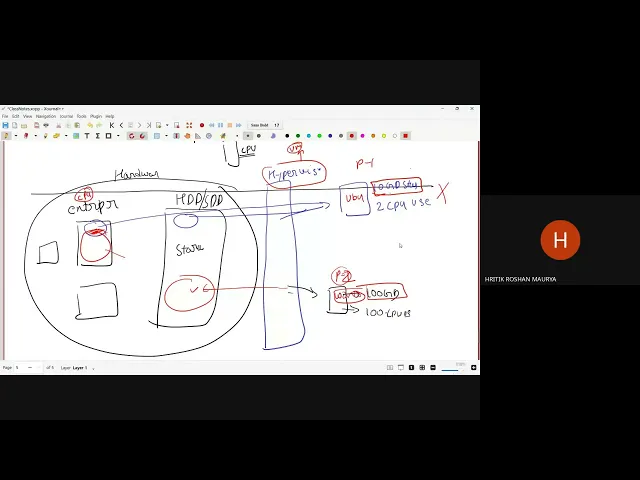
Q1: What is a hypervisor and how does it relate to WSL?
A1: A hypervisor is a software that allows a single physical computer to host multiple virtual machines (VMs). It efficiently shares the underlying hardware resources (like CPU, RAM, storage) among these VMs.
In large setups (like cloud platforms or big companies), instead of running one OS directly on all hardware, a hypervisor is installed first. It then allocates specific resources to different users or VMs. For instance, one user might get 10GB storage and 2 CPUs, while another gets 100GB and 100 CPUs. This allows for optimal resource utilization.
WSL (Windows Subsystem for Linux) in Windows leverages Hyper-V, which is a type of hypervisor. Unlike traditional virtual machines (like those created with VirtualBox) where the guest OS (e.g., Ubuntu) runs on top of Windows, which then talks to the CPU, Hyper-V allows Ubuntu (in WSL) to access the CPU directly. This direct access, facilitated by the hypervisor, is why WSL is generally much faster than other VM solutions. Hyper-V is considered a “Type 1” or “bare-metal” hypervisor because it has direct access to the hardware.
Q2: What is the basic file system structure in Linux, and how does it compare to Windows?
A2: In Linux, everything starts from the root directory, denoted by /. All other files and directories are organized hierarchically under this root. Key directories include /home (where user directories reside) and /mnt (where external drives, including Windows drives in WSL, are mounted).
- Full paths in Linux always start with
/(e.g.,/home/username/documents). - Relative paths do not start with
/(e.g.,documentsif you are already in/home/username). ~(tilde) is a special shortcut representing the current user’s home directory (e.g.,/home/username)..(single dot) refers to the current directory...(double dot) refers to the parent directory.
In contrast, Windows uses drive letters (e.g., C:\, D:\) as its root for different partitions, and uses backslashes (\) for path separation (e.g., C:\Users\username\Documents).
Q3: How do I navigate and list files in the Linux terminal?
A3:
ls(list): Shows the contents of the current directory. If you provide a path (e.g.,ls /home/username/documents), it lists the contents of that specific directory.cd(change directory): Allows you to move between directories. For example,cd documentsmoves you into thedocumentssubdirectory within your current location.cd ..moves you up one level to the parent directory.clear: Clears the terminal screen.
Q4: Can I access my Windows files from within WSL (Linux)?
A4: Yes. In WSL, Windows drives (like your C: drive) are “mounted” under the /mnt directory in Linux. You can navigate to them using commands like cd /mnt/c/Users/your_windows_username/Documents and then use ls to list your Windows files. This process is called “mounting.”
Q5: What is the .bashrc file and why is it important?
A5: The .bashrc file (or .zshrc for Zsh users on Mac) is a script that Bash (or Zsh) runs every time you open a new terminal session. It’s located in your home directory (~). This file is crucial for customizing your shell environment, such as setting up aliases, defining functions, and configuring your PATH variable. For example, you’d put your API keys as environment variables in this file so your applications can access them.
Q6: What is uv and how do I install Python packages like llm with it?
A6: uv is a fast Python package installer and resolver. It’s designed to be a modern alternative to pip.
To install uv:
- Open your WSL (Ubuntu) terminal.
- Run
sudo apt install python3-pip(ifpipis not installed). - Run
pip install uv. - Close and re-open your terminal for
uvto be recognized. - Verify installation with
uv --version.
To install Python packages like llm (a Large Language Model tool) using uv:
- Run
uv pip install llm. (You can also useuv tool install llm.) - To uninstall, use
uv pip uninstall llm.
Q7: How do I interact with Large Language Models (LLMs) like Gemini or ChatGPT using llm?
A7: The llm tool allows you to interact with various LLMs from your command line.
- Set up API keys: You need to obtain API keys from the respective LLM providers (e.g., Google AI Studio for Gemini, OpenAI for ChatGPT).
- For Gemini, you’ll go to Google AI Studio, create a project, and generate an API key.
- For OpenAI, you’ll go to the OpenAI website and generate an API key.
- Important: Use your student email for these services, not your personal email.
- Configure API keys in
llm:- For Gemini:
llm keys set gemini(then paste your Gemini API key when prompted). - For OpenAI:
llm keys set openai(then paste your OpenAI API key when prompted). - For OpenAI specifically, if you are using a TDS token (which provides $10/month), you also need to set a custom base URL. For this, add
export OPENAI_API_BASE="[your_TDS_base_URL]"to your.bashrcfile.
- For Gemini:
- Install LLM models:
- For Gemini:
uv tool install llm-gemini(orllm install gemini). - For OpenAI (GPT-4):
uv tool install llm-gpt4(orllm install gpt-4).
- For Gemini:
- Interact with LLMs:
- To use Gemini:
llm -m gemini-pro "Your question here" - To use GPT-4:
llm -m gpt-4 "Your question here" - You can also just type
llmand then enter your query in an interactive session.
- To use Gemini:
Q8: Where can I find the necessary links and resources mentioned in the tutorial?
A8: All links and resources (like the uv installation instructions, API key generation pages, and llm documentation) will be shared in the chat window during the session and pinned for easy access. For llm specifically, you can visit its GitHub page for detailed information on models and pricing (for paid services like OpenAI).
Q9: What if I encounter an error or am stuck during the setup or execution of commands?
A9: It’s common to face issues, especially when new to the command line.
- For
vieditor issues: If you are stuck invi, pressESC, then type:q!and press Enter to exit without saving. For simple editing,notepad filename.txtis recommended for Windows users. - General errors: Try to re-read the command and ensure correct syntax. If a command gives an error, try searching the error message.
- Instructor support: If a group is stuck, the instructor will address common issues. For individual problems, you can raise your hand or ask questions at designated times. The instructor will offer individual support even after the recording stops.
- Recordings: Session recordings are available, allowing you to review steps at your own pace.
Q10: Why are we learning command-line tools like uv and llm?
A10: Learning command-line tools is crucial for automation and data science workflows.
- Automation: Many real-world applications in data science involve automated tasks. Command-line interfaces (CLIs) are the primary way to automate these tasks, as applications won’t be using a mouse or keyboard.
- Package Management: Tools like
uvallow for efficient installation and management of Python packages directly from the command line, which is standard practice in development environments. - Flexibility: Understanding the command line gives you greater control and flexibility over your system and development environment.
- Foundation: These basic command-line skills are foundational for many advanced topics covered later in the course, including project setup and deployment.